
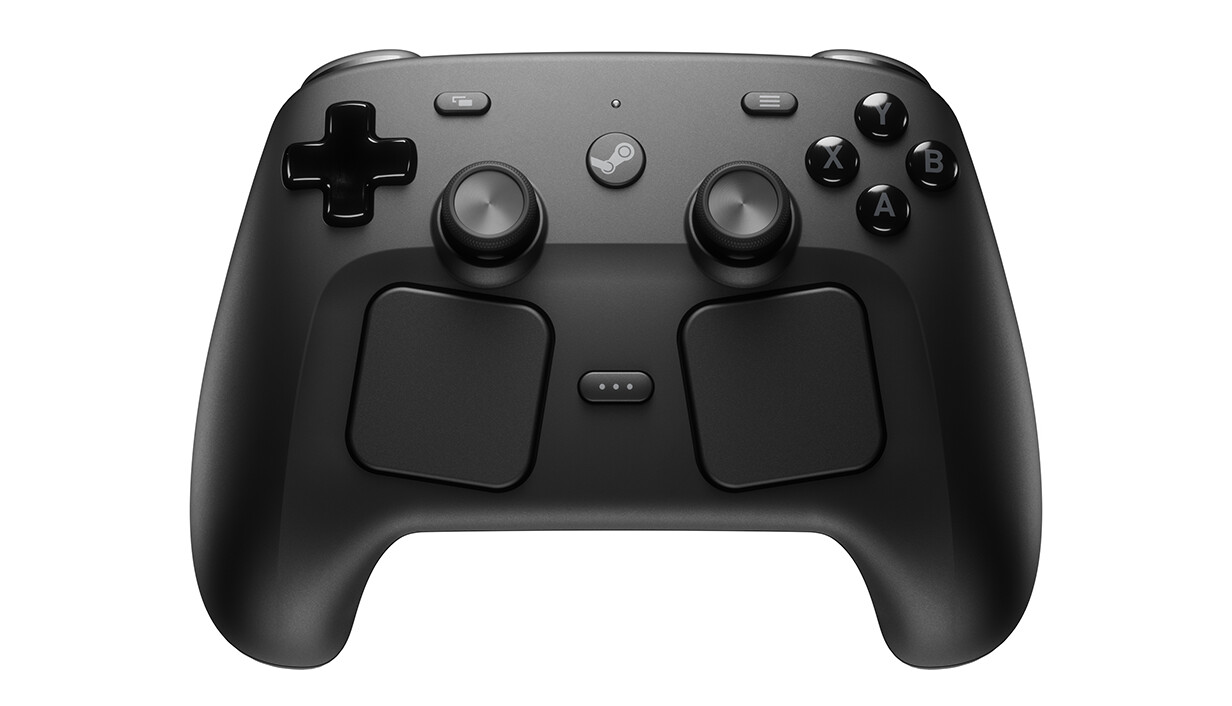
Valve has published a detailed guide to the Steam Controller trackpads covering all configuration options in the Steam Input Configurator.
The trackpads serve two primary use cases: as a full mouse replacement (ideal for FPS, point-and-click, and strategy games) and as a button mapping surface for keys, shortcuts, and system functions. Available modes include As Mouse, Flick Stick, Scroll Wheel, Directional Pad, Button Pad, and virtual menus (Radial Menu up to 20 options, Touch Menu up to 16, Hot Bar).
There are two primary use cases for the trackpads:
- To control a mouse cursor or to aim — from simple UI navigation to precise aiming in competitive shooters. Utilizing both trackpads together can provide an even more complete mouse experience.
- As a way to provide mapping for various keys, buttons, shortcuts, or system level functionality that isn’t possible with a traditional controller — as a button/directional pad (up to 4 buttons per trackpad) or as a virtual menu (radial/touch/hot bar) with up to 20 options.
Practical configurations from the guide: For FPS games, Valve recommends the right pad as mouse, triggers as mouse clicks, and ABXY for actions while aiming. For strategy/RTS games, map the left pad as a Directional Pad with Scroll Wheel Up/Down — enable “Hold to Repeat (Turbo)” for continuous scrolling. To control volume via swipe gesture, set the pad to Directional Swipe (swipe up = Volume Up, down = Volume Down, Scroll Wheel Mode: Vertical Only). The on-screen keyboard can be invoked via Single Button → Click → System → Show Keyboard, with the behavior set to Start Press.
Source: Steam