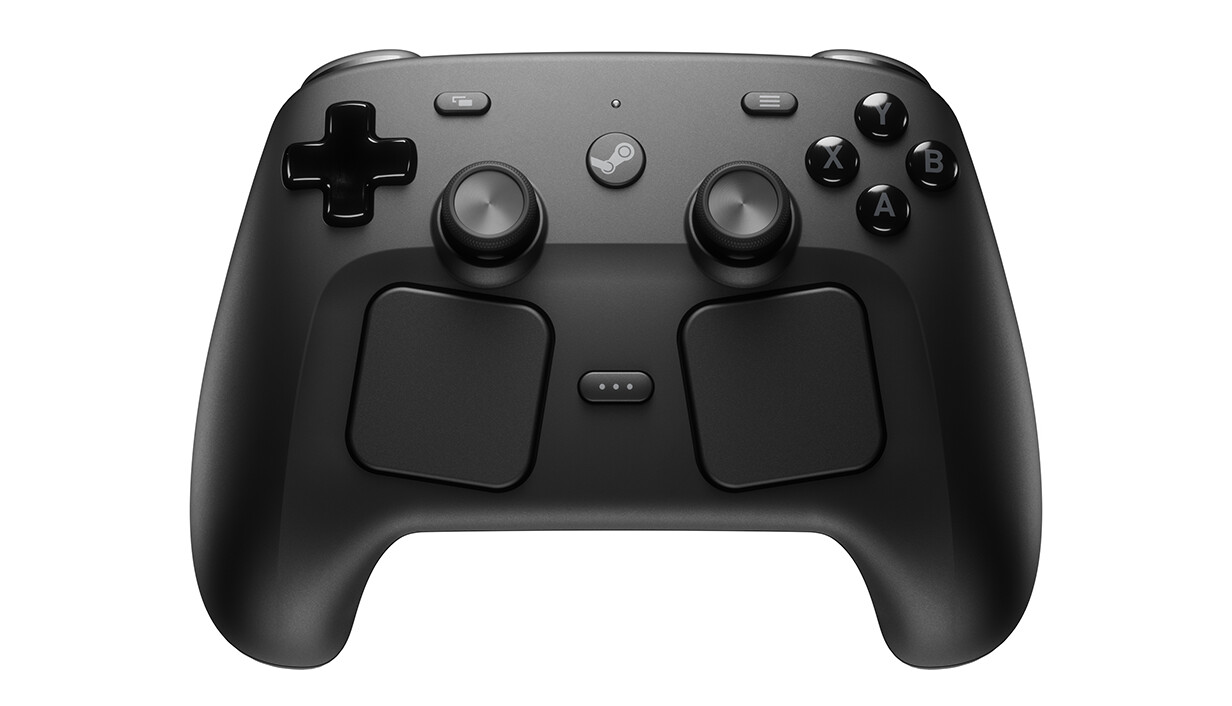
Valve hat einen ausführlichen Guide zu den Trackpads des Steam Controllers veröffentlicht, der alle Konfigurationsmöglichkeiten im Steam Input Configurator erklärt.
Die Trackpads bieten zwei Hauptanwendungsfälle: als vollwertiger Mausersatz (ideal für FPS, Point-and-Click und Strategie-Spiele) und als Button-Mapping-Fläche für Tasten, Shortcuts und Systemfunktionen. Die verfügbaren Modi reichen von As Mouse, Flick Stick und Scroll Wheel über Directional Pad und Button Pad bis hin zu virtuellen Menüs (Radial Menu mit bis zu 20 Optionen, Touch Menu mit bis zu 16, Hot Bar).
There are two primary use cases for the trackpads:
- To control a mouse cursor or to aim — from simple UI navigation to precise aiming in competitive shooters. Utilizing both trackpads together can provide an even more complete mouse experience.
- As a way to provide mapping for various keys, buttons, shortcuts, or system level functionality that isn’t possible with a traditional controller — as a button/directional pad (up to 4 buttons per trackpad) or as a virtual menu (radial/touch/hot bar) with up to 20 options.
Praktische Konfigurationen aus dem Guide: Für FPS-Spiele empfiehlt Valve das rechte Pad als Maus, Trigger als Mausklicks, ABXY für Aktionen während des Zielens. Für Strategie-/RTS-Spiele lässt sich das linke Pad als Directional Pad mit Scroll Wheel Up/Down belegen – „Hold to Repeat (Turbo)" aktivieren für kontinuierliches Scrollen. Wer die Lautstärke per Wischgeste steuern will, setzt das Pad auf Directional Swipe (Wisch hoch = Volume Up, runter = Volume Down, Scroll Wheel Mode: Vertical Only). Die Bildschirmtastatur ruft man per Single Button → Click → System → Show Keyboard auf, Verhalten auf Start Press setzen.